

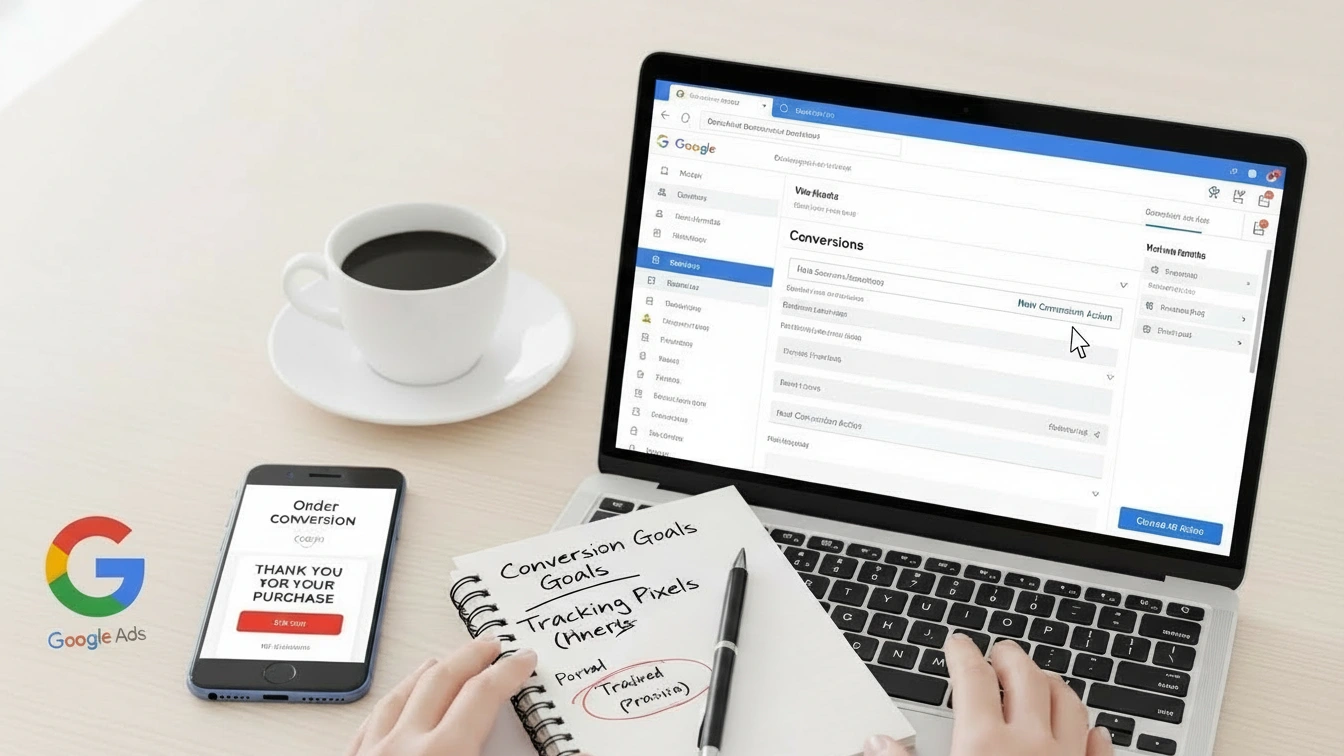

Accurate conversion tracking is the foundation of successful Google Ads campaigns. Without it, you’re flying blind, unable to see which ads drive sales, leads, or valuable actions.
Setting up conversion tracking requires five straightforward steps: define your conversion goals, create a conversion action, install the Google tag on your website, test and verify everything works, and optimize your tracking for better results.
You’ll learn which tracking methods work best, how to avoid common mistakes, and how to integrate advanced tools like Google Tag Manager.
By the end, you’ll have a fully functional tracking system that reveals which campaigns actually drive revenue and helps you maximize your advertising ROI.
5 Steps on How to Set Up Conversion Tracking in Google Ads
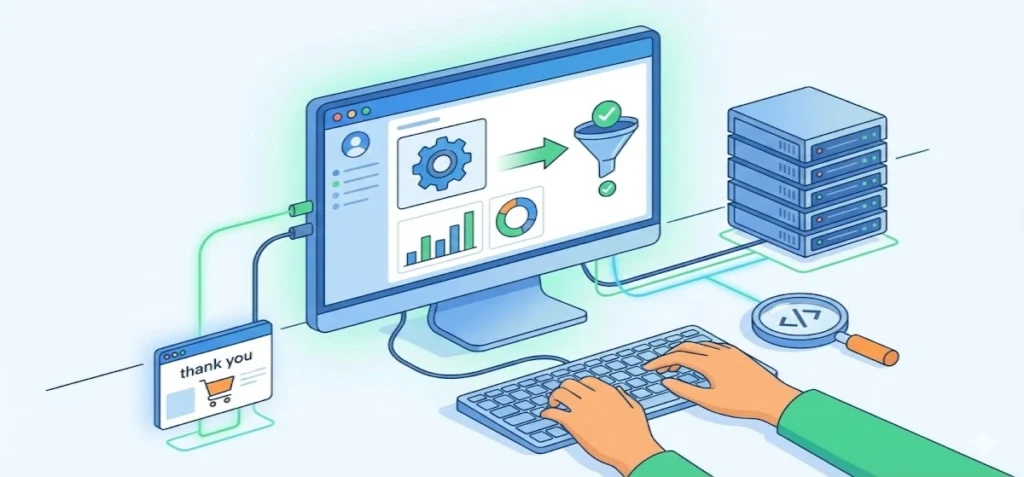
Converting clicks into measurable business results requires a strategic approach. Understanding each step ensures you capture every valuable user action and optimize your advertising budget effectively.
Step 1: Define Your Conversion Goals
Before configuring any tracking code, clarify what a conversion means for your business. Different organizations have different priorities. Your conversions might include purchases, form submissions, phone calls, app installs, or newsletter sign-ups.
For e-commerce businesses, a conversion typically means a completed purchase. Service providers often track lead form submissions. B2B companies may prioritize demo requests or consultation bookings.
If you operate on multiple platforms, consider working with a Google Tag Manager consultant to ensure consistent conversion definitions across channels. When managing Shopify stores specifically, it’s critical to properly track Google Ads conversions on Shopify so you capture all online sales data accurately.
Establishing clear definitions helps you configure your Google Ads goal setup properly. Many businesses benefit from GA4 consulting services to align conversion metrics across their entire analytics ecosystem. Additionally, implementing strategies from a UTM tracking expert ensures consistent attribution across channels, while HubSpot CRM tracking integrates offline and online conversion data seamlessly.
Quick Action: Spend 15 minutes right now listing all the valuable user actions on your website. These are your conversion candidates. Rank them by business impact.
Step 2: Create a Conversion Action in Google Ads
Once you’ve defined your goals, create the actual conversion action in your Google Ads account. This process is straightforward and takes only minutes.
Here’s how:
- Sign in to Google Ads and navigate to Goals > Conversions > Summary
- Click + New conversion action and select your source (typically Website)
- Configure the essential settings:
- Category: Choose Purchase, Lead, Sign-up, or Phone Call
- Conversion value: Select Fixed or dynamic pricing
- Count: Choose “One” for leads or “Every” for repeated purchases
- Conversion window: Set up to 90 days
- Attribution model: Data-driven attribution is recommended
Advanced setups often benefit from a GA4 consultant to import events or configure GA4 server-side tracking for enhanced measurement accuracy.
Cross-platform tracking becomes powerful when you integrate Facebook conversion API setup, TikTok pixel and conversion API setup, Snapchat pixel and conversion API, or Pinterest pixel and conversion API alongside Google Ads for consolidated reporting.
Step 3: Install the Google Tag on Your Website
Installation requires selecting the right method for your technical setup. Three primary approaches exist, each with distinct advantages.
Method 1: Google Tag Manager (Recommended)
This approach offers maximum flexibility and ease of management. Create a Google Ads conversion tracking tag in GTM, input your Conversion ID and Label, define a trigger such as a “Thank You” page visit, and add a Conversion Linker tag to improve accuracy.
This method suits businesses managing multiple tracking needs simultaneously and provides the easiest maintenance path as your requirements grow.
Method 2: Manual Installation
Add the global site tag (gtag.js) on all pages, then insert the event snippet on your confirmation page. While functional, manual installation requires more technical maintenance and becomes cumbersome if you need to modify tracking later.
Method 3: Import from GA4
Link GA4 with Google Ads and select events to import as conversions. This streamlined approach works exceptionally well if you already have GA4 properly configured with your website events.
Businesses with ecommerce pixel tracking or cross-platform campaigns should integrate Facebook pixel setup, LinkedIn insight tag setup, or Microsoft Ads conversion tracking alongside Google Ads tags for holistic performance measurement.
For complex implementations, consulting a Google Tag Manager consultant ensures proper setup from the start.
Setup Tip: Google Tag Manager is the recommended method for most businesses because it eliminates the need to edit website code directly. You can add, modify, or remove tags without developer involvement.
Step 4: Test and Verify Conversion Tracking
Testing separates successful implementations from problematic ones. Skipping this step creates blind spots in your data that can persist for months.
Critical testing procedures:
- Use Google Tag Assistant or GTM Preview mode to confirm tags fire on the correct pages
- Complete a test conversion by performing your target action on the website
- Monitor Google Ads to see conversions change from Inactive to Active status
- Document results to establish baseline data
For Shopify sites, testing is especially important to verify that Google ads conversions in Google Analytics are captured accurately.
If running multiple pixels, ensure that conversion tracking with FB pixel or other platform pixels doesn’t conflict with Google Ads tracking. Comprehensive testing using GA4 server-side tracking reveals whether server-side implementations transmit data correctly.
Step 5: Optimize and Enhance Conversion Tracking
After your conversion tracking goes live, continuous optimization ensures maximum accuracy and usefulness. This is where you unlock advanced capabilities.
Key optimization strategies:
Enhanced Conversions use hashed first-party data like emails or phone numbers to improve tracking precision. Dynamic Conversion Values automatically assign real-time transaction values for ecommerce purchases, enabling better ROI calculations.
Phone Call Tracking leverages Google forwarding numbers to capture phone conversions, while Offline Conversion Imports connect CRM data to ad campaigns.
Privacy compliance matters increasingly. Implement Consent Mode and follow GDPR or CCPA requirements to build customer trust.
Businesses using multiple platforms can implement GA4 consulting services, Facebook conversion API setup, and pixel solutions from TikTok, Snapchat, Pinterest, and LinkedIn to gain comprehensive cross-platform insights.
Google Ads phone conversion tracking captures voice interactions, while Google Ads conversion tracking setup guides ensure accurate data collection throughout your entire funnel.
Pro Insight: Start with basic conversion tracking. Once you have clean, reliable data flowing for 2-3 months, then layer in enhanced conversions and dynamic values. This prevents over-optimization on incomplete data.
Common Mistakes to Avoid When Setting Up Conversion Tracking
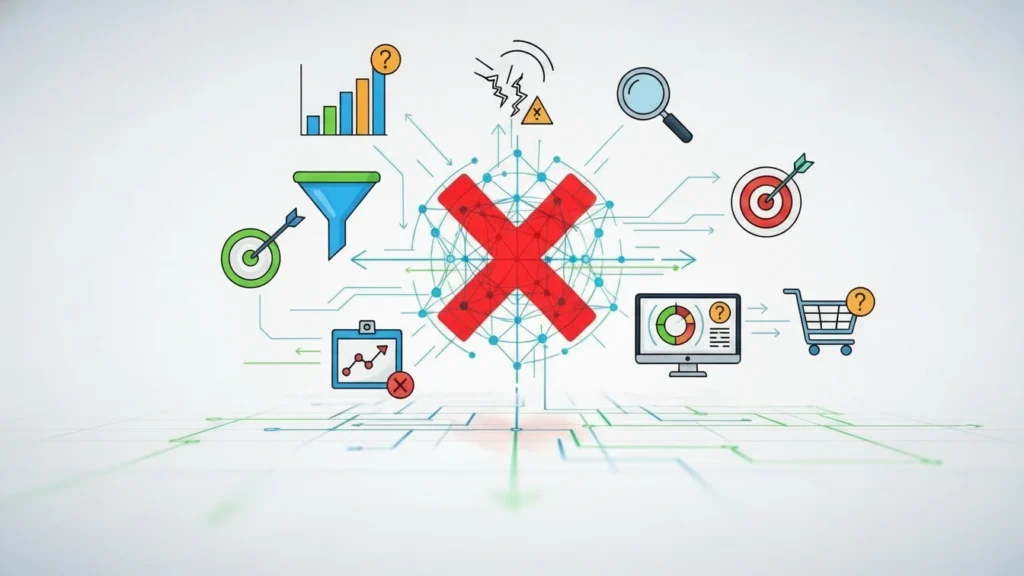
Even well-intentioned marketers stumble on preventable errors. Learning from others’ mistakes accelerates your success.
Tracking Too Many Low-Value Actions
Monitoring excessive minor interactions creates noisy data that obscures actionable insights. Track meaningful conversions like purchases, qualified leads, and demo requests, not every page view or scroll.
Focus your efforts on Google Ads conversion tracking that directly impacts revenue. Concentrated tracking on high-value actions produces cleaner data and better optimization opportunities for your campaigns.
Incorrect Tag Placement
Placing conversion tags on the wrong pages or missing confirmation pages loses conversion data.
Always verify your tags fire on the correct page, typically a thank you or confirmation page. Double-check trigger conditions carefully. Many Google ads goal setup failures stem from tags placed on pages users never reach after converting.
Skipping Testing and Verification
Neglecting to test implementation leads to months of inaccurate reporting. Use Tag Assistant, perform test conversions, and review results in Google Ads.
Verify that Google Ads phone conversion tracking registers phone interactions correctly. Test GA4 server-side tracking implementations thoroughly before relying on the data for optimization decisions.
The Path Forward
Setting up Google Ads conversion tracking transforms your advertising from guesswork into data-driven decision-making. These five steps define goals, create conversion actions, install tags, test thoroughly, and optimize continuously to build your foundation for measurable success.
Advanced marketers integrate GA4 server-side tracking, Facebook pixel setup, and TikTok pixel and conversion API setup to capture the complete customer journey. LinkedIn insight tag setup connects B2B campaigns to lead generation, while Microsoft ads conversion tracking extends reach across the Bing network.
Implementing conversion tracking with FB pixel alongside Google Ads creates redundancy and validation. For ecommerce operations, ecommerce pixel tracking through multiple platforms ensures no sales escape your metrics. Start with fundamentals and master basic tracking before layering advanced integrations.
Frequently Asked Questions
What’s the difference between Google Ads conversion tracking and GA4 conversion tracking?
Google Ads conversion tracking measures actions directly attributed to your ads within the Google Ads platform. GA4 conversion tracking monitors all website interactions regardless of source.
Using both together creates a complete picture where GA4 shows overall user behavior while Google Ads shows campaign-specific performance. Many marketers use GA4 consulting services to align these systems for consistent reporting across platforms.
Can I track phone calls as conversions in Google Ads?
Absolutely. Google provides two methods: phone conversion tracking through call extensions displays phone numbers directly in ads, and Google forwarding numbers track calls generated by your ads.
Set up a conversion action with the “Phone Call” category in your conversion settings. This approach works particularly well for service businesses where phone contact represents a qualified lead.
How long does it take for conversion data to appear in Google Ads?
Most conversions appear within 24 to 48 hours in standard Google Ads reports. However, real-time reporting in GTM shows conversions immediately. If you don’t see conversion data after two days, review your tag placement, trigger conditions, and conversion window settings.
Use Google Tag Manager conversion tracking preview mode to diagnose issues before they affect your optimization efforts.
Should I use Google Tag Manager or manual installation for conversion tracking?
Google Tag Manager is strongly recommended, especially if you manage multiple conversion types or plan to scale. GTM provides easier management, better testing capabilities, and flexibility to add future tracking without coding changes.
Manual installation works for simple setups but becomes cumbersome as your tracking needs grow. Consult a Google Tag Manager consultant if you’re unsure about your specific setup requirements.
Start Tracking Conversions That Matter
Your advertising success depends on accurate conversion tracking. Follow these five steps systematically, test thoroughly, and document everything as you go. This creates a repeatable system you’ll reference throughout your advertising career. The difference between guessing and knowing which ads drive revenue starts here. Don’t delay another quarter with blind campaigns. Implement proper conversion tracking this week and watch your ROI clarity improve immediately.
