


Every business needs to understand what happens after someone clicks an ad. Tracking conversions reveals whether your marketing investments actually drive sales and leads. Facebook Pixel, Meta’s powerful tracking tool, gives you complete visibility into customer actions on your website.
This comprehensive guide covers everything you need to know about tracking conversions with Facebook Pixel, from initial setup through advanced optimization.
Whether you’re launching your first campaign or refining existing strategies, you’ll learn exactly how to capture valuable conversion data and use it to boost your ROI.
By the end, you’ll have a complete tracking infrastructure that transforms raw user behavior into actionable insights.
Steps to Track Conversions with Facebook Pixel
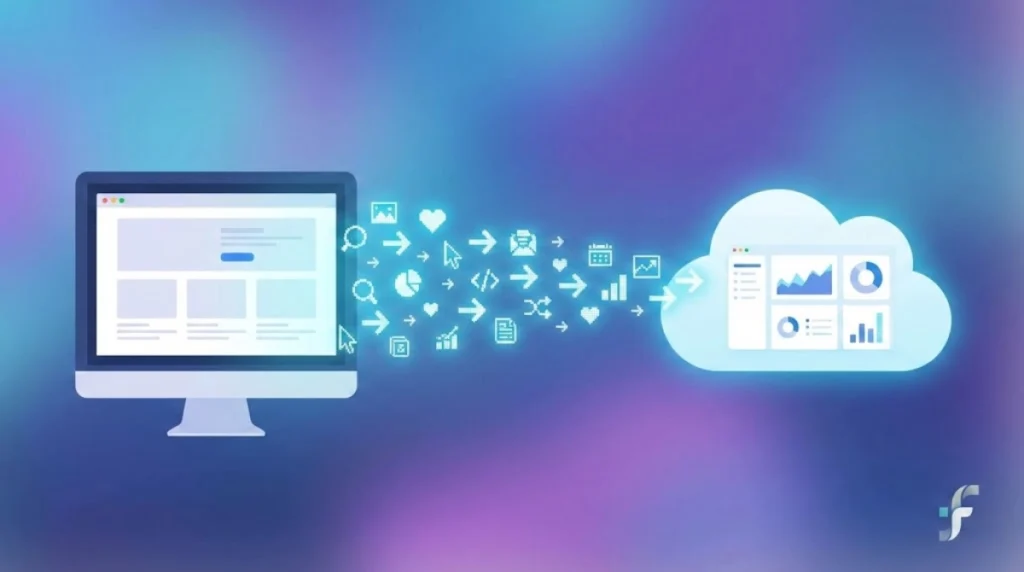
Getting conversion tracking right from the start saves months of troubleshooting later. Here’s exactly how to build a solid foundation.
Create and Set Up Your Facebook Pixel
Navigate to Meta Business Suite and find your Events Manager. Click the plus icon and select Web, then Pixel. Give your pixel a clear name like “Website Main Pixel” and enter your website URL. Meta will generate a unique Pixel ID, a 15-16 digit number. Copy this immediately; you’ll need it for installation.
A conversion Tracking and analytics expert would recommend storing this ID securely with your other marketing credentials. This pixel becomes the foundation for all your conversion data collection.
Install Pixel Code on Your Website
The pixel code must reach every page where you track user behavior. For Shopify stores, navigate to Settings, then Apps, and find the Facebook and Instagram app to connect your pixel automatically. For WordPress sites, install the official Meta Pixel for WordPress plugin and paste your Pixel ID into the settings.
For custom websites, use Google Tag Manager to deploy the code efficiently across all pages. Create a new custom HTML tag and set it to fire on all pages. This approach to Facebook pixel setup avoids direct code editing and simplifies future updates.
Verify installation using the Facebook Pixel Helper Chrome extension. Visit your website and confirm green checkmarks appear next to PixelInitialized and PageView events. Red X marks indicate problems requiring troubleshooting.
Configure Standard Events for Reliable Tracking
Standard Events are pre-defined actions that Meta recognizes and optimizes for. These include ViewContent for product views, AddToCart for items added, InitiateCheckout for checkout started, Purchase for completed transactions, Lead for form submissions, and CompleteRegistration for account creation.
These events work seamlessly with Facebook pixel and conversion API integration for maximum data accuracy when combined with server-side tracking. You can implement these events on relevant pages to track user behavior effectively.
Add Custom Events for Unique Actions
Standard events might not capture everything specific to your business. Facebook pixel tracking becomes more valuable when you add custom events like WebinarSignup, DemoRequested, or E-bookDownloaded.
Custom events fire when specific user actions occur on your site. These give you granular data about behavior beyond typical e-commerce transactions, helping you understand your unique customer journey and business objectives.
Create Custom Conversions Using URL Rules
Custom Conversions let you track actions without adding code. Go to Events Manager, then Custom Conversions, then Create. Select your Pixel and define a rule like “URL contains /thank-you” to track confirmation pages automatically.
This method is ideal for businesses implementing ecommerce tracking pixel expert strategies without complex development resources. You can assign conversion values to track revenue when order amounts vary across different transactions.
Test Your Implementation Before Running Campaigns
Download the Facebook Pixel Helper Chrome extension to verify everything works. Visit your website’s key pages, including homepage, product pages, checkout, and thank-you pages. The extension shows which events fire correctly. Green checkmarks indicate success; red X marks signal problems.
Go to Events Manager and select Test Events. Perform test actions like adding items to the cart or completing a purchase. Events should appear within seconds, confirming Facebook pixel tracking is capturing real user behavior accurately.
Optimize Campaigns Using Conversion Data
Once your pixel is verified and is collecting data, leverage this information to improve campaign performance significantly.
Monitor Key Conversion Metrics
In Ads Manager, track metrics like Purchases, Cost per conversion, Conversion rate, and ROAS or Return on Ad Spend. This allows Google Analytics consulting professionals to measure campaign performance and identify which ads drive actual results.
Review which campaigns generate the most conversions. Filter by date range to spot trends. Are conversions increasing over time? Do certain placements outperform others? Use this insight to reallocate budget toward winners and pause underperformers.
Build Custom Audiences for Retargeting
Conversion data creates the foundation for sophisticated audience building. Go to Ads Manager, then Audiences, then Custom Audience, then Event. Select specific conversion actions and create audiences of people who viewed products but didn’t purchase, abandoned carts, or purchased in the last 30 to 90 days.
These audiences enable effective retargeting with special offers or upsell campaigns, significantly improving ROI compared to cold traffic and new audiences.
Advanced Tracking: Server-Side Integration
Facebook pixel and conversion API integration adds server-side tracking that improves accuracy beyond browser-based pixel tracking alone. The Conversions API sends conversion data directly from your server to Meta, bypassing browser restrictions and ad blockers that block 20 to 35 percent of client-side tracking.
For Shopify stores, Meta provides native Conversions API support and you should select this option during pixel setup. For custom platforms, you’ll need developer assistance to map server events to Meta’s specifications. Combined pixel and CAPI tracking achieves 95 to 98 percent data accuracy compared to pixel-only tracking’s 70 to 80 percent accuracy.
Align Facebook Tracking with Google Analytics
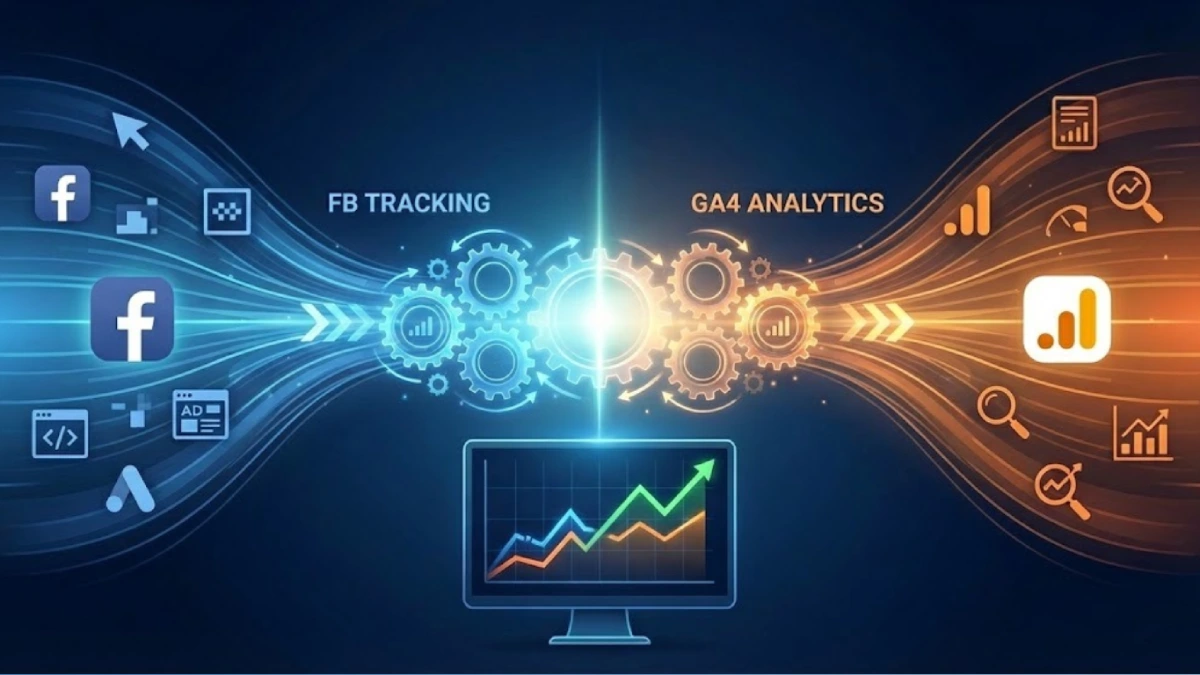
Most businesses run campaigns across multiple platforms, requiring integration with Google Analytics. GA4 tracking setup and troubleshooting alongside Facebook pixel implementation creates complete customer journey visibility.
Connect Facebook ads to GA4 by adding UTM parameters to your ad URLs. In Ads Manager, set parameters to auto-populate source equals Facebook and medium equals paid. This allows Google Analytics audit professionals to properly attribute traffic to Facebook campaigns within your analytics platform.
In GA4 Admin, connect your Facebook ads account to enable data import and attribution reporting. When your Facebook pixel setup fires purchase events, GA4 receives matching data for cross-platform analysis and reporting.
Google Ads Integration for Multi-Platform Campaigns
Many businesses combine Facebook and Google advertising. Understanding how Google Ads conversion tracking setup and optimization related to Facebook tracking ensures consistent measurement across platforms.
For setting up conversion tracking in Google Ads, you’ll create conversion actions in your Google Ads account and add the Google Ads conversion tag to your website. Similar to Facebook pixel setup, this fires when users reach conversion pages.
Google Ads conversion tracking uses Google’s conversion API with Enhanced Conversions, similar to Meta’s approach. You can track the same conversions in both platforms simultaneously. A purchase event fires to both the Facebook pixel and the Google Ads tag at once for complete tracking.
For setting up Google Ads conversion tracking on Shopify, both platforms offer native integrations. Go to Settings, then Apps, and install both the Meta app and Google Channel. Shopify handles pixel code installation automatically for both platforms, simplifying multi-platform tracking.
Tracking Google Ads conversions in Google Analytics requires connecting your Google Ads account to your GA4 property in Admin settings. Create GA4 conversion events matching your Google Ads conversion actions. This alignment enables you to view Google Ads performance directly in Google Analytics dashboards.
Tracking Phone Conversions From Your Ads
Not every business operates entirely online. Tracking phone conversions from Google Ads requires a different implementation than web-based conversion tracking.
Use Google’s Call Extension feature combined with call tracking software. Add your phone number to ads using Google’s Call Extension format. Google tracks clicks and reports them as conversions. For detailed tracking, integrate with CallRail or Invoca to record calls and tie them to specific campaigns and audiences.
Facebook doesn’t have native phone tracking like Google does. Instead, implement a click-to-call link on your website and track clicks as events. Advanced services offer Facebook to call tracking integration, though setup is more complex than Google’s native approach.
Troubleshooting Common Implementation Issues
Pixel Not Firing: If the Facebook Pixel Helper shows red X marks on certain pages, verify the pixel code is installed on all page templates. For WordPress, check that your plugin is active. For Shopify, confirm the app is connected and enabled.
Data Mismatches: Small discrepancies of 5 to 15 percent between Facebook and your website records are normal. Wait 24 hours before analyzing data since Facebook’s reporting includes processing delays. Larger discrepancies suggest real problems requiring investigation.
Ad Blocker Impact: Users with ad blockers won’t send pixel data. Implement the Conversions API for server-side tracking that bypasses browser restrictions and protects your data collection.
Frequently Asked Questions
How long until pixel data appears?
Pixel data appears in Events Manager within 15 to 30 minutes. Test Events show results within 1 to 2 minutes. Allow 24 hours before analyzing campaign performance for complete data.
Can I use one pixel for multiple websites?
No, each website should have its own pixel for accurate tracking and segmentation. Using separate pixels prevents data mixing and enables detailed analysis of each site’s performance independently.
What’s the difference between standard and custom events?
Standard Events are pre-defined actions Meta optimizes for, including Purchase, Lead, and ViewContent. Custom Events are business-specific, like WebinarSignup and DemoRequested. Standard Events provide better optimization, while custom events provide better insights.
Do I need the Conversions API?
For basic tracking, a pixel-only setup works well. But for 95 percent or higher accuracy and sophisticated retargeting, Facebook pixel and conversion API integration becomes essential, especially with iOS users and high ad-blocker usage among your audience.
Take Action on Your Conversion Tracking
Tracking conversions with Facebook Pixel transforms ad spend into measurable results. Start with standard events, add custom events as needed, and test everything before running campaigns. Monitor results consistently and adjust optimization strategies based on actual data.With proper conversion tracking infrastructure, every campaign decision rests on accurate data rather than guesswork. Your efficiency improves, audiences refine, and ROI climbs. The investment in correct tracking pays dividends indefinitely through better campaign performance and smarter budget allocation.
